I wanted to make some files available to download for my readers. Blogger does not provide native attachments, but you can host files elsewhere and link to them from your blog. Below I show how I used Google Sites and the File Cabinet page template to host files and then link to them from a Blogger post.
Quick summary
Host the file on Google Sites using the File Cabinet page template, right-click the Download link to copy the file URL, then paste that URL into your Blogger post as a link (example below).
What you need
- A Google account
- A Google Site (create one if you don’t have it)
- The file(s) you want readers to download (ZIP, PDF, etc.)
Steps
1. Go to Google Sites
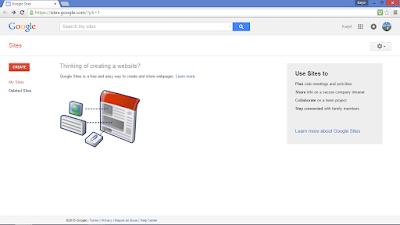
Login with your Google account. If you don’t have a Google Site yet, create one using the CREATE button.
2. Create a new site
Choose a template, fill in the site name and location, complete the CAPTCHA if prompted, and click CREATE.
3. Add a new page using the File Cabinet template
Create a new page and select the File Cabinet page template (this template is designed to host downloadable files).

4. Upload files
Use the File Cabinet page controls to add the files you want to provide for download.

5. Copy the file link
After uploading, locate the Download link for the file. Right-click the Download link and choose "Copy link address" to copy the direct URL to the file.

6. Add the link to your Blogger post
In the Blogger post editor, add a link to the text where readers will click to download. You can paste the URL directly using the editor's link tool, or use raw HTML like this:
<a href="PASTE_COPIED_LINK_HERE">Download ZIP</a>
If your editor supports it, select a descriptive anchor text such as "Download ZIP — contains sample code".
7. Publish and test
Publish your Blogger post and click the link to confirm the file downloads correctly. If users report access issues, check the sharing/permission settings on the Google Site (make sure the file/page is publicly accessible if you want anyone to download it).
Helpful screenshots

Notes and alternatives
- Google Sites UI may change over time — if you cannot find a File Cabinet template, look for a page template that supports file uploads or use another file-hosting service.
- As an alternative, you can host files in Google Drive or another file host and link to them from Blogger. If you use a different host, be sure to verify public access permissions before publishing.
That’s it. Happy Coding..
No comments:
Post a Comment