How to Add Background Music to a Website in HTML — HTML5 Audio + Fallbacks
Greetings Of The Day!!!
As I told you in my previous blog I was working on designing of a website for an Ashrama. They wanted a background music to play in the home page of the website. I was wondering how to do it as it has to play without any controls and should start automatically. It’s pretty simple to do it.
Overview
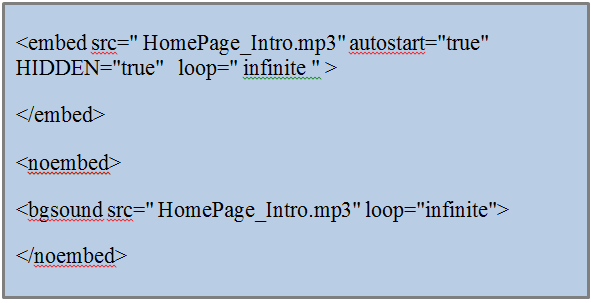
HomePage_Intro.mp3 is the file which is going to play in the background. You can replace it with your file name and also note that this should be available on the server. If it’s not there in the directory where the index file is, you can give the full path (or URL) of the music file.
Below I keep the original examples (for older browsers) and add a modern HTML5 recommendation and practical notes about browser behavior, accessibility and hosting.
Modern (recommended) approach — HTML5
Use the HTML5
<!-- HTML5 audio: will loop and attempt to autoplay. Many browsers block autoplay with sound. -->
<audio src="HomePage_Intro.mp3" autoplay loop></audio>
Notes:
Most modern browsers block autoplay with sound unless the audio is muted or the user has previously interacted with the page. To increase the chance of autoplay you can use muted autoplay, but that obviously mutes the audio:
Important: newer IE versions may recognize both methods and could play audio twice if you include multiple tags without a conditional wrapper. Putting the bgsound inside a noembed (or using conditional comments or feature detection) prevents duplicate play.
Show controls (if you want the user to control playback)
In the original article I hid the music controls. If you want to show the controls, use the HTML5 controls attribute:
Or provide a simple link that visitors can click to start the music (this is the least intrusive option):
<a href="HomePage_Intro.mp3">Play music</a>
Images from the original article
Browser compatibility and autoplay behavior
Modern browsers (Chrome, Firefox, Safari, Edge) implement autoplay policies that generally block autoplay with sound until the user interacts with the page. Autoplay with sound may be allowed only under specific conditions (user media engagement index, previously granted permission, or muted audio).
Mobile browsers commonly block autoplay with sound to avoid unexpected data usage and user annoyance.
Therefore, do not rely on autoplay to always work. Provide a user-controlled play button or link.
Practical recommendations (technical)
Provide multiple audio formats where possible (MP3 for broad support, OGG for some older browsers) so you can do format fallbacks server-side or via elements.
<audio controls>
  <source src="HomePage_Intro.ogg" type="audio/ogg">
  <source src="HomePage_Intro.mp3" type="audio/mpeg">
  Your browser does not support the audio element.
</audio>
Optimize audio file size (bitrate/compression) to reduce page load. Consider hosting on a CDN or streaming service if the file is large or has high traffic.
Consider feature detection with JavaScript to progressively enhance behavior (try to autoplay, then fall back to showing a play button if blocked).
Accessibility and UX
Don’t surprise your visitors. Auto-playing audio can be disruptive and cause people to leave the page quickly. Provide controls or a clear "Play music" link.
Provide a transcript or caption if the audio contains important information.
Use ARIA labels if you have custom player controls, e.g. role="button" aria-pressed="false" on play/pause toggles.
Hosting and legal
Ensure the audio file is correctly hosted and accessible (CORS may matter for cross-origin requests). Use absolute or relative URLs as appropriate.
Confirm you have the right to distribute the music (copyright/royalty/licensing).
Conclusion
We should be aware that background music that automatically starts playing when a web page is loaded may not be appreciated by a large number of the visitors. Some of them, when greeted with the sudden blaring of music from their speakers, may immediately hit the BACK button of their browsers.
You need to remember that there are people who browse the Internet in public libraries, surfing centres, at work, or in the dead of the night when others are asleep. Others may already have their favourite music playing on their computer speakers, and your auto-playing music file will only cause them to be annoyed. So it’s always better to give the controls for the players.
Even if you are satisfied that your website has the type of target audience that will enjoy your background music, there are alternatives to automatically playing music that you might want to consider. For example, giving visitors a link which they can click to play music would allow you to showcase your music while remaining sensitive to your visitors' preferences.
After clicking on the “Play music” link, the music can start playing in the background or even you can give the controls for the player to control the music.




No comments:
Post a Comment